Connecting my Linux and Windows computer in my new German environment
I have described a lot of way to connect Linux and Windows, but now I want to explain how I made connection in my new working environment.
1. Connect to my Linux computer from Windows RDP.
Firstly need to install xrdp desktop manager.
# sudo zypper install xrdp xorgxrdp
Then start and Enable the xrdp service
# sudo systemctl enable --now xrdp
Then open the firewall port
# sudo firewall-cmd --state
# sudo firewall-cmd --list-all
# sudo firewall-cmd --permanent --add-port=3389/tcp
# sudo firewall-cmd --permanent --add-service=rdp
# sudo firewall-cmd --reload
Then configure the session (to prevent black screen)
# cat ~/.xsession
# echo "startplasma-x11" > ~/.xsession
Then check Service status)
# sudo systemctl status xrdp
# sudo journalctl -u xrdp -f
# sudo journalctl -u xrdp -n 50 --no-pager
# ls -la ~/.xsession
And check opened port
# sudo ufw status
# sudo systemctl stop firewalld
# sudo systemctl start firewalld
# sudo firewall-cmd --zone=public --list-ports
# sudo systemctl status firewalld
# sudo firewall-cmd --state
And check how packages going to port 3389
# sudo ss -tlnp | grep 3389
# sudo tcpdump -i any -nn 'tcp port 3389'
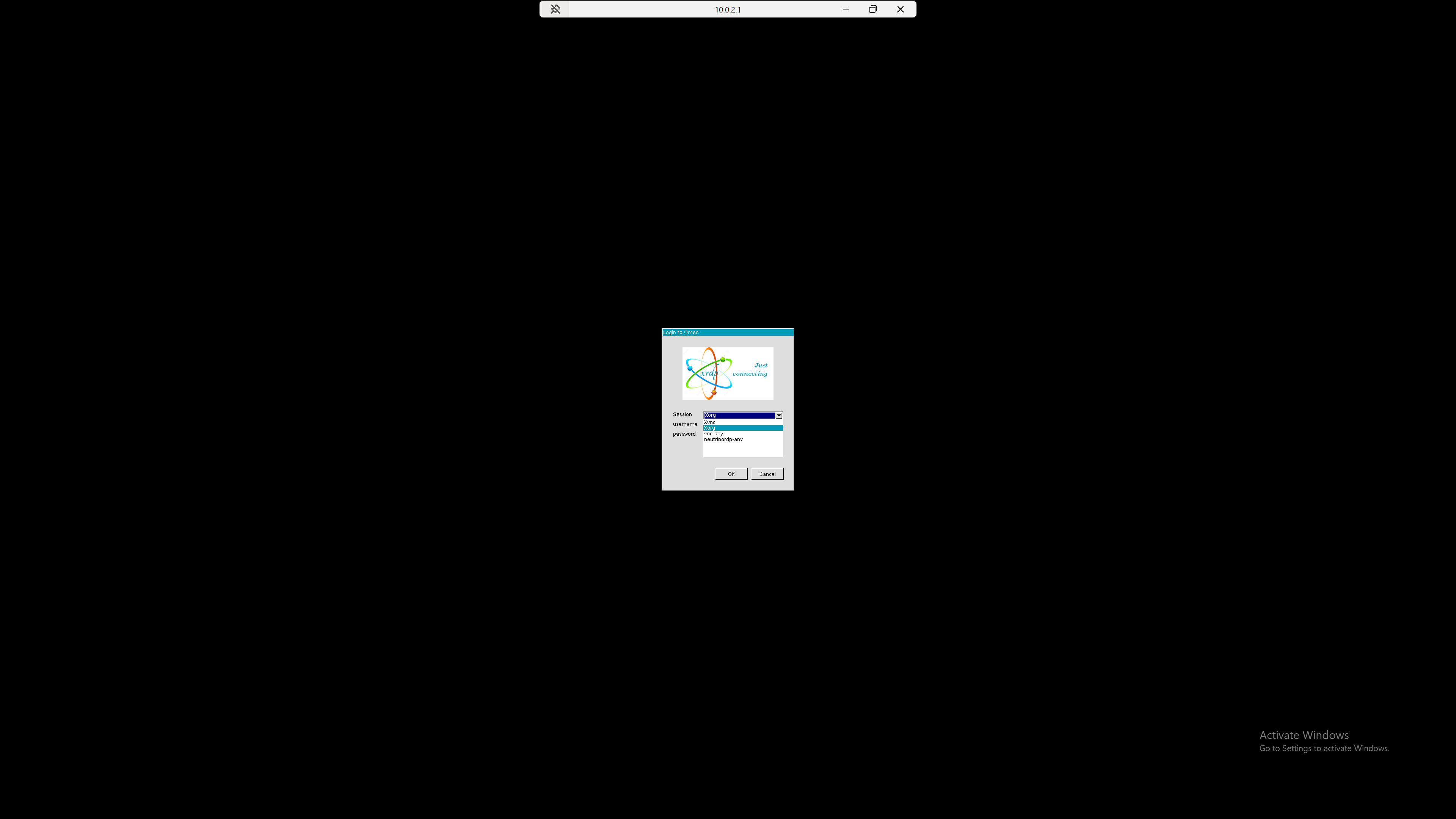
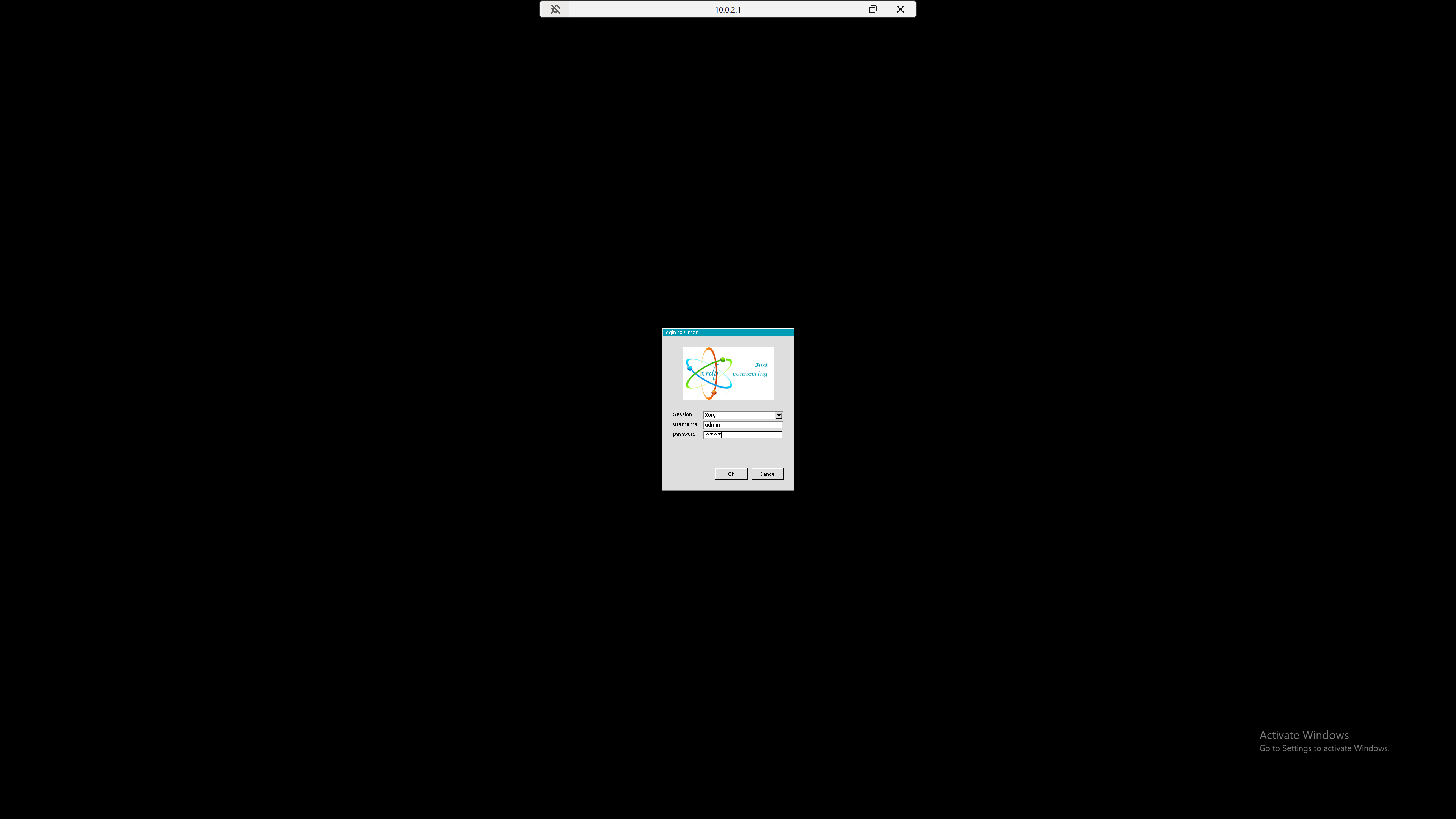
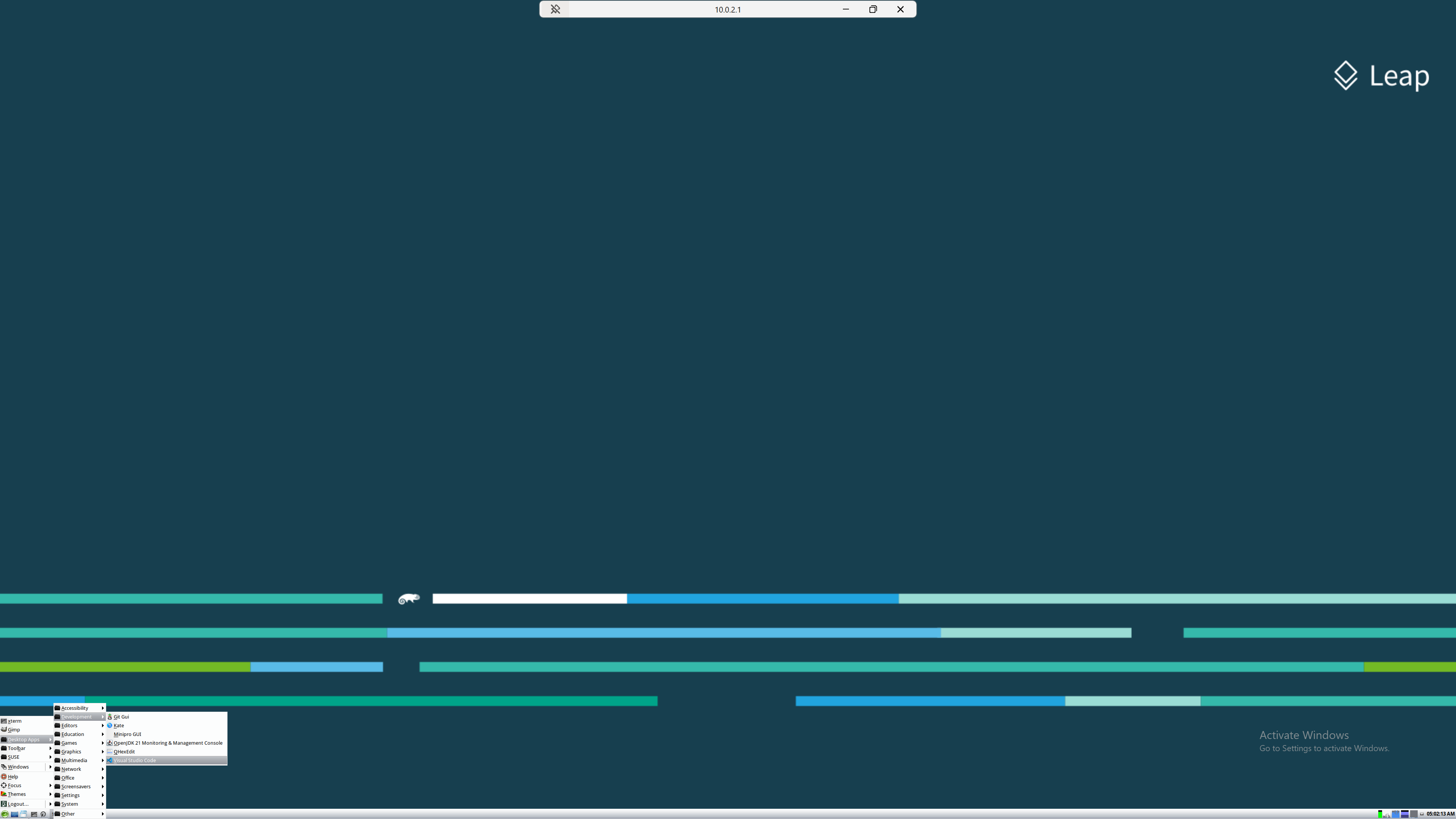
2. Connect to my Windows computer from Linux.
Firstly need to open 3389 port in Windows.
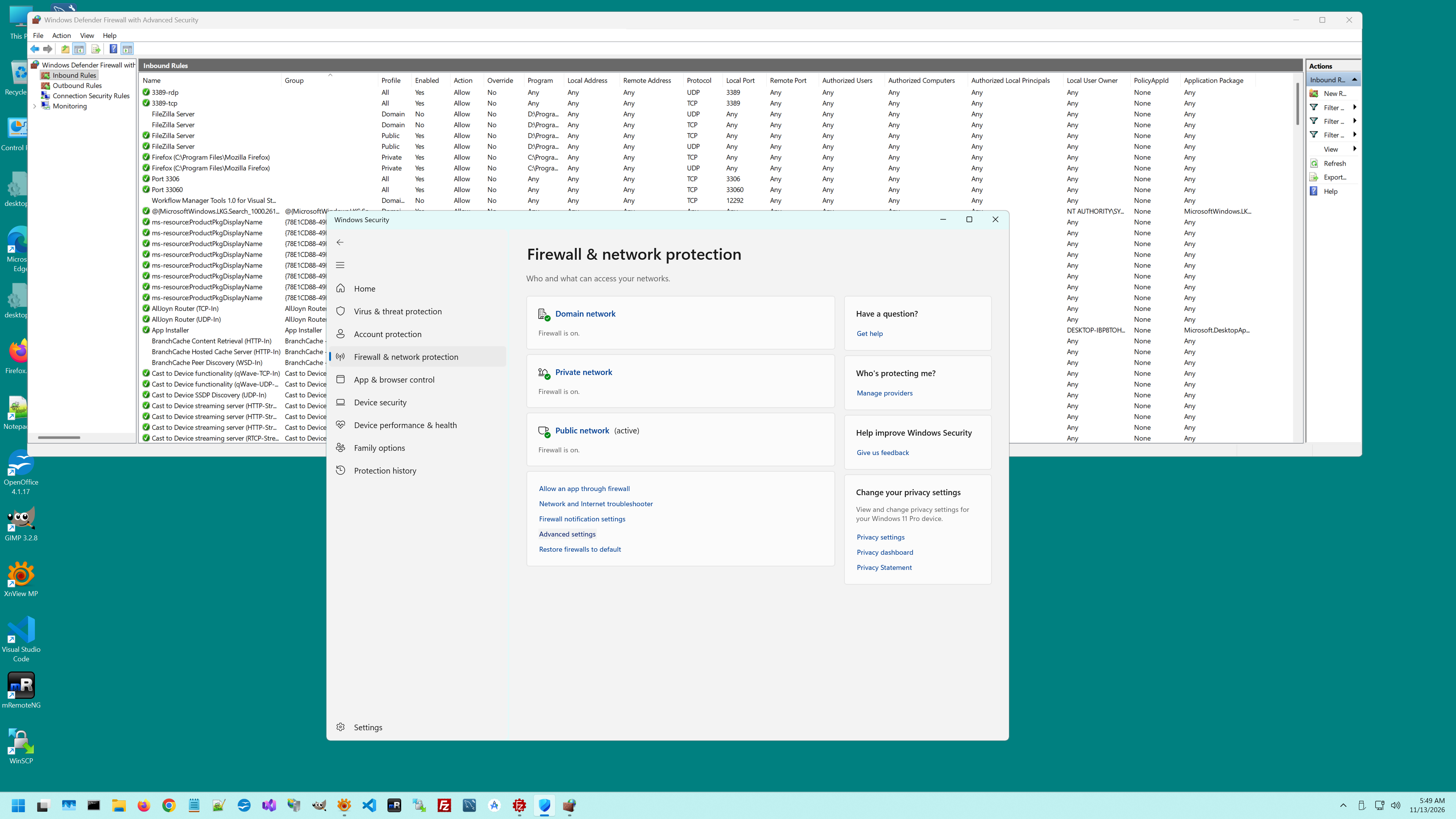
But now Windows has new feature, what application has right to access to firewall rules, but in RDP case RDP already present in this list.
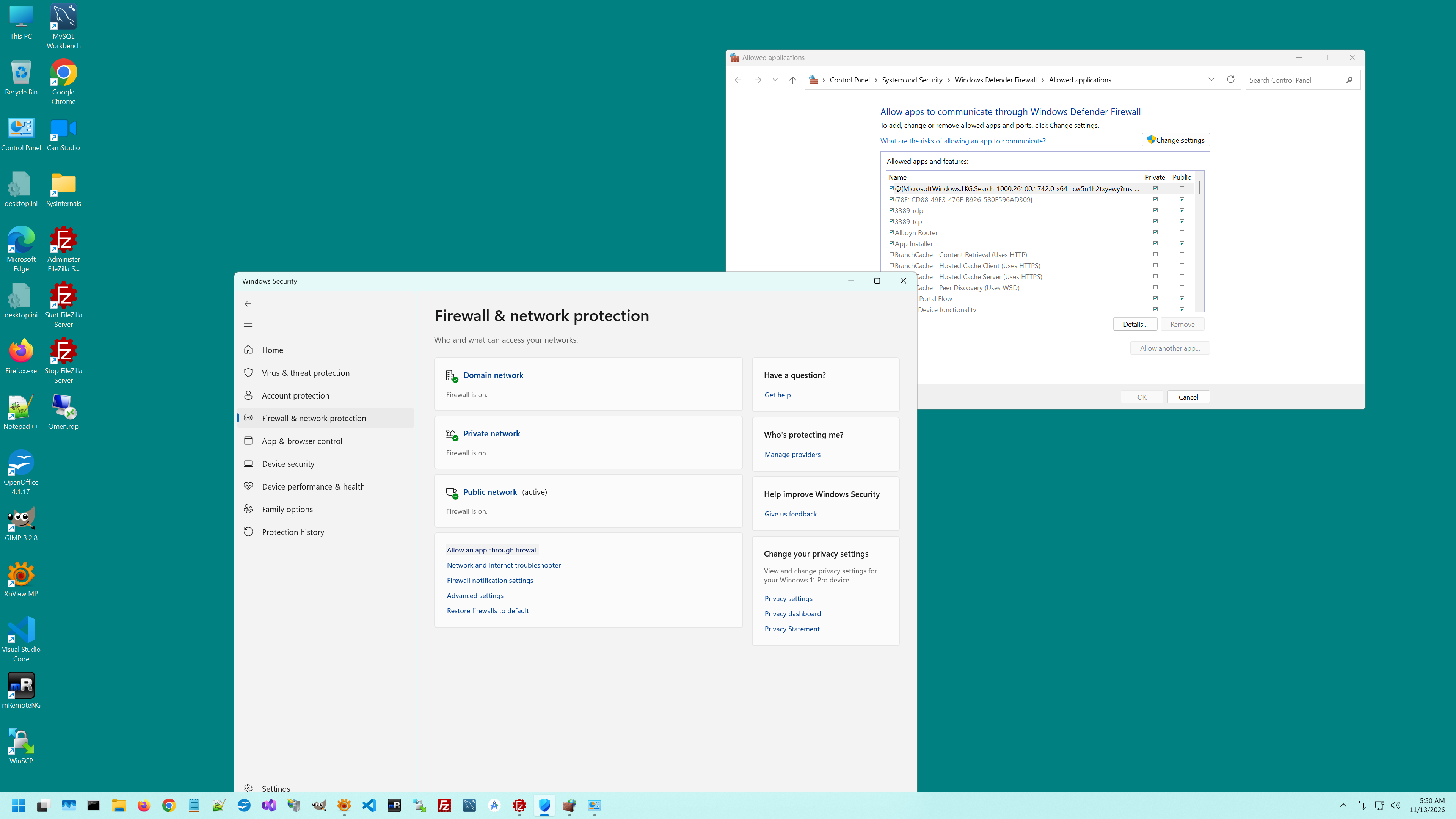
Then need to set available RDP service and turn off additional security.
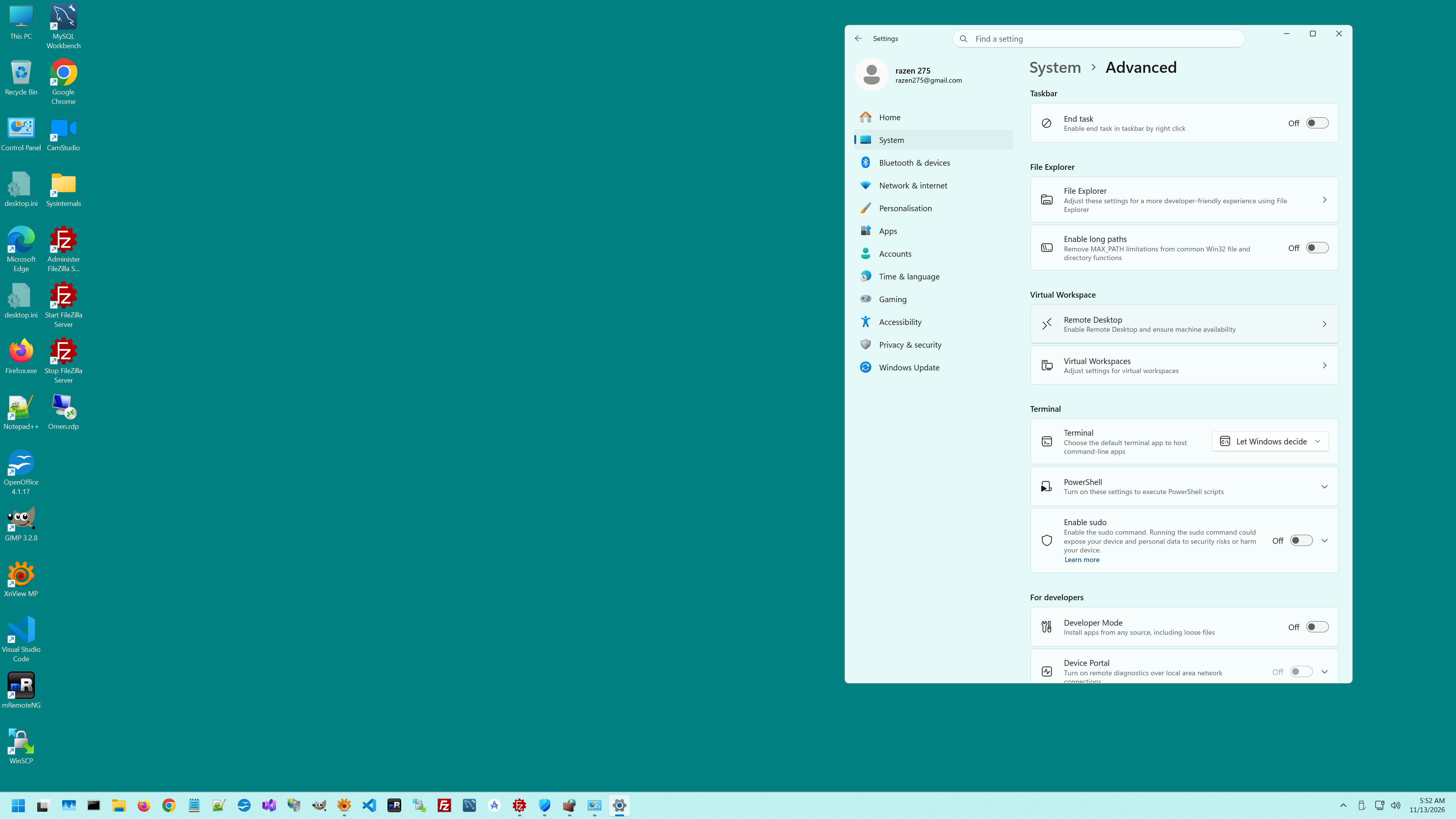
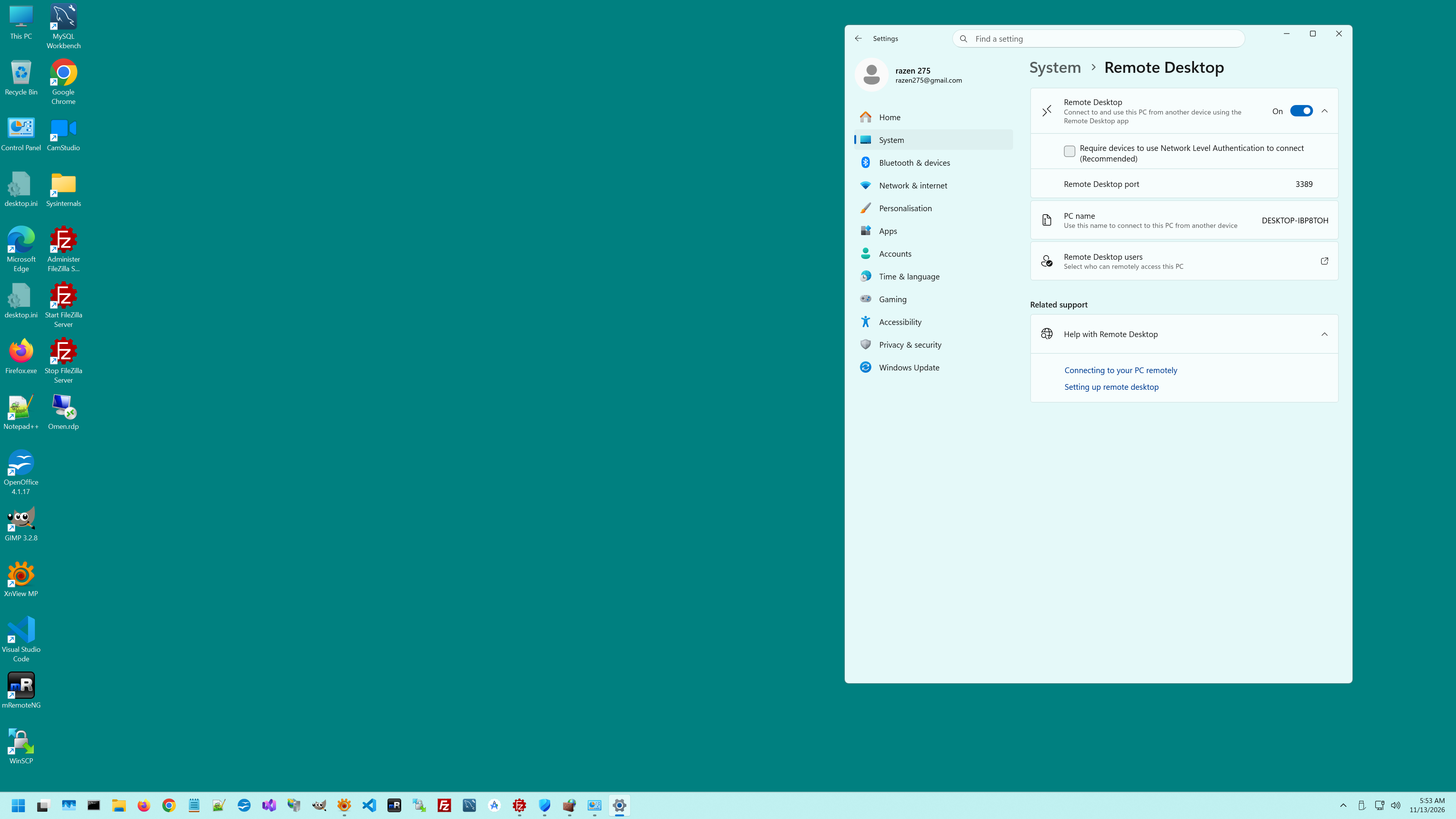
Unfortunately, when you try to connect to Windows Desktop by RDP, windows show something "Unblock you PC" and that's it. Therefore below you can see something magic with Windows registry and Group policy. I try to select a lot values, therefore I't possible I forget something, sorry.
Forced RDP Transport to TCP Only: Disabled UDP protocol fallback on the Windows host to stop rendering buffer drops and black screen freezes..
# Registry Path: `HKEY_LOCAL_MACHINE\SOFTWARE\Policies\Microsoft\Windows NT\Terminal Services\Client`
# Value Name: `fClientDisableUDP`
# Type: `DWORD (32-bit)`
# Data: `1`
Authentication & Lock Screen Bypasses. Disabled Password Prompt on Reconnection: Prevented Windows from enforcing redundant authentication prompts when display parameters change.
# Registry Path: `HKEY_LOCAL_MACHINE\SOFTWARE\Policies\Microsoft\Windows NT\Terminal Services`
# Value Name: `fPromptForPassword`
# Type: `DWORD (32-bit)`
# Data: `0`
Disabled Lock Screen Overlay: Suppressed the Windows `LockApp` graphical process that traps input and stops button clicks from registering.
Registry Path: `HKEY_LOCAL_MACHINE\SOFTWARE\Policies\Microsoft\Windows\Personalization`
Value Name: `NoLockScreen`
Type: `DWORD (32-bit)`
Data: `1`
Configured Sysinternals AutoLogon: Enabled automatic user authentication to prevent session lock loops upon reboot or disconnection. Microsoft Sysinternals `Autologon.exe`. Saved encrypted account credentials for seamless automated desktop session initialization.
Policy Enforcement & System Reload
# gpupdate /force
Usually I use Remmina to connect with various Windows computers, but with modern Windows version I don't know why Remmina don't working, therefore I use this command:
# xfreerdp /v:10.0.2.16 /u:admin /cert:ignore /sec:tls /bpp:16 /workarea +clipboard
To check how packages going you can use:
# nc -zv 10.0.2.16 3389
If connection is working, to store all parameters I just created desktop icon for RDP connect to my Windows computer.
# nano ~/Desktop/razen-rdp.desktop
Than create desktop icon:
[Desktop Entry]
Name=Razen RDP
Comment=Connect to Windows via xfreerdp
Exec=xfreerdp /v:10.0.2.16 /u:admin /cert:ignore /sec:tls /bpp:16 /workarea +clipboard
Icon=computer
Terminal=false
Type=Application
Than make icon executable.
# chmod +x ~/Desktop/razen-rdp.desktop
And this is final result:
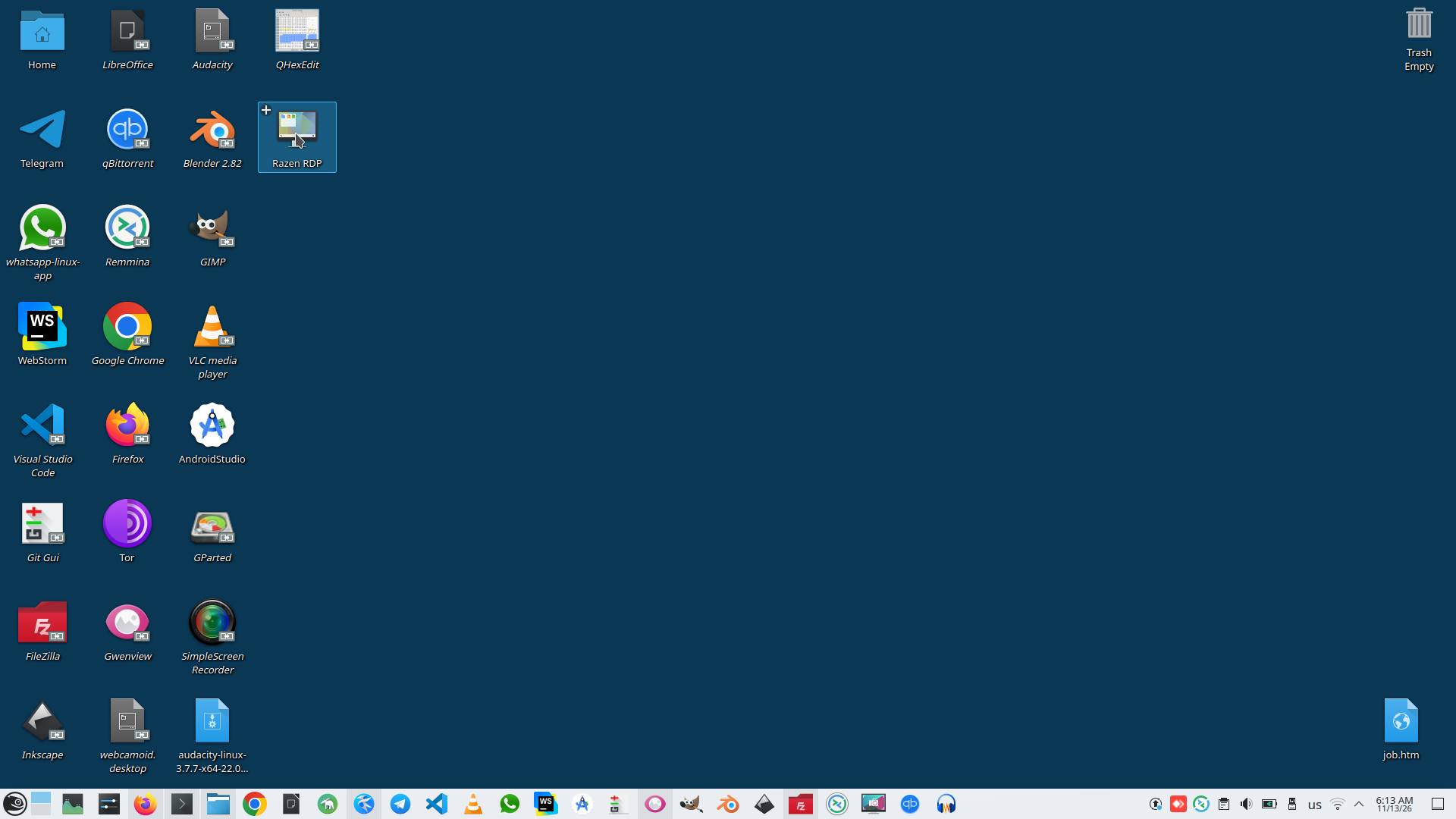
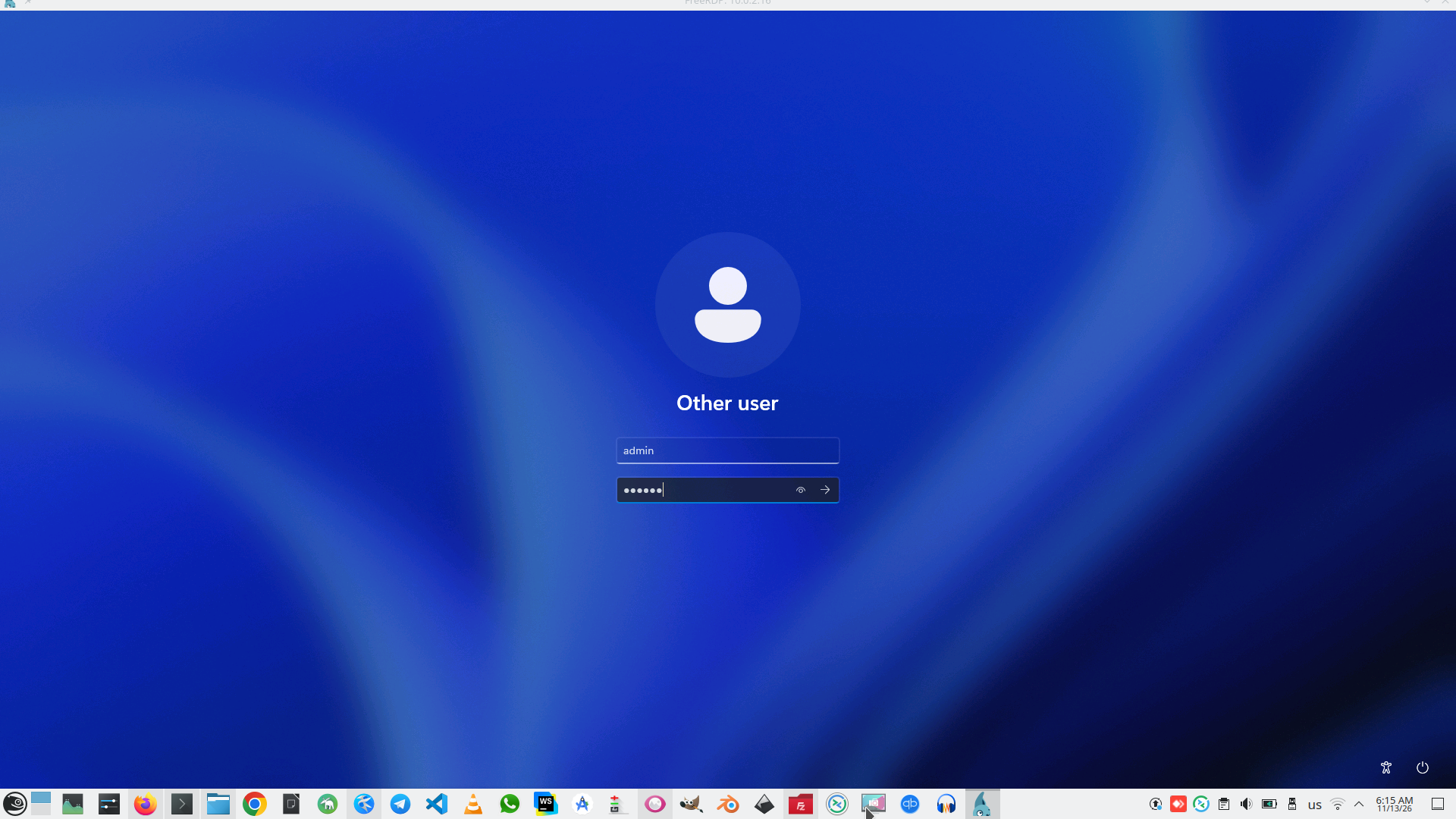
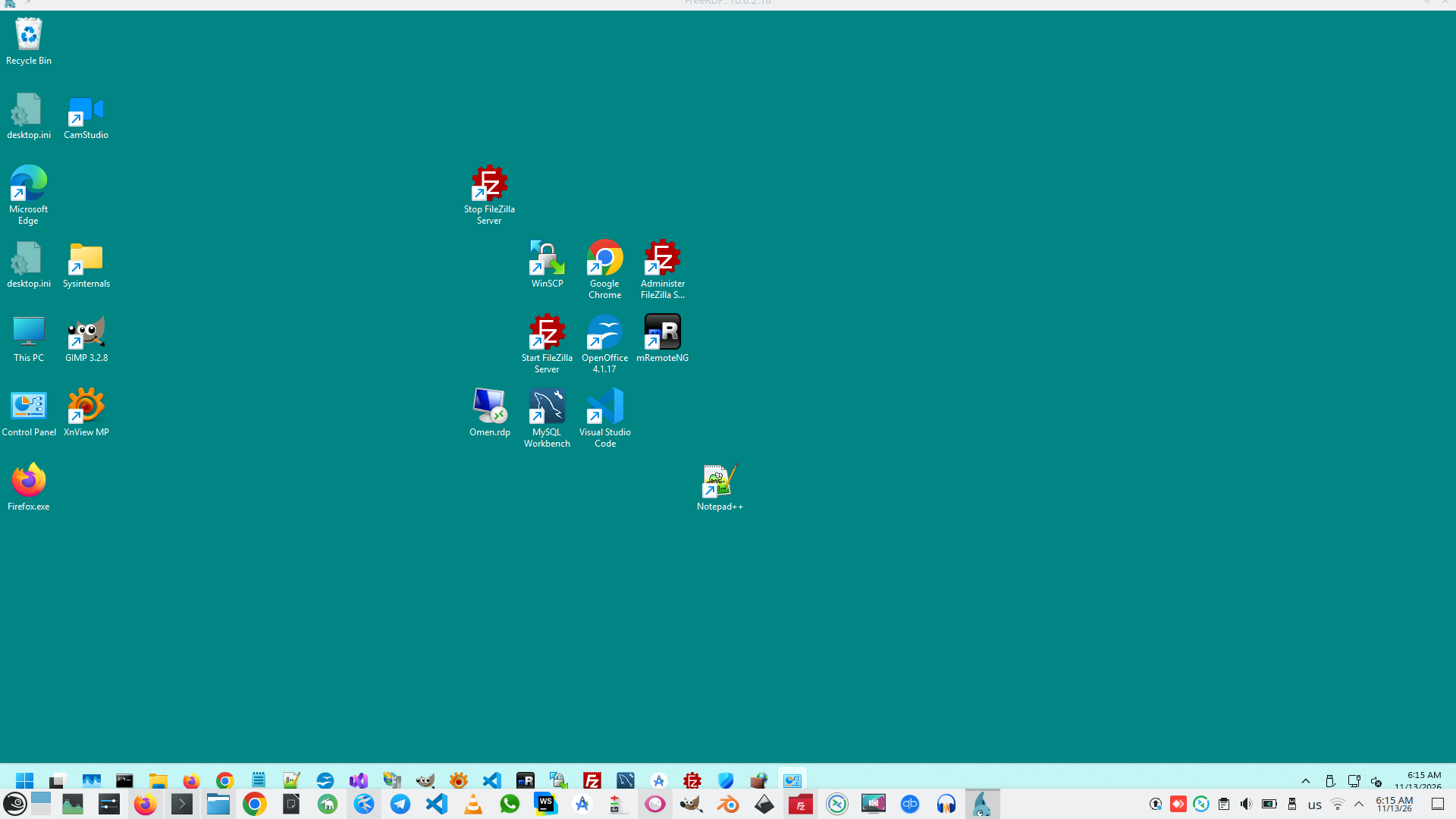
Some icons not in right order, because resolution in my Windows and Linux desktop is different, but this is not critical issue.
3. Set up Filezilla server on Windows computer.
For Filezilla server I have open in Firewall all ports, but Filezilla has no automatically included as program (like RDP) that has right to use Firewall rules, therefore Filezilla must be add to that list manually.
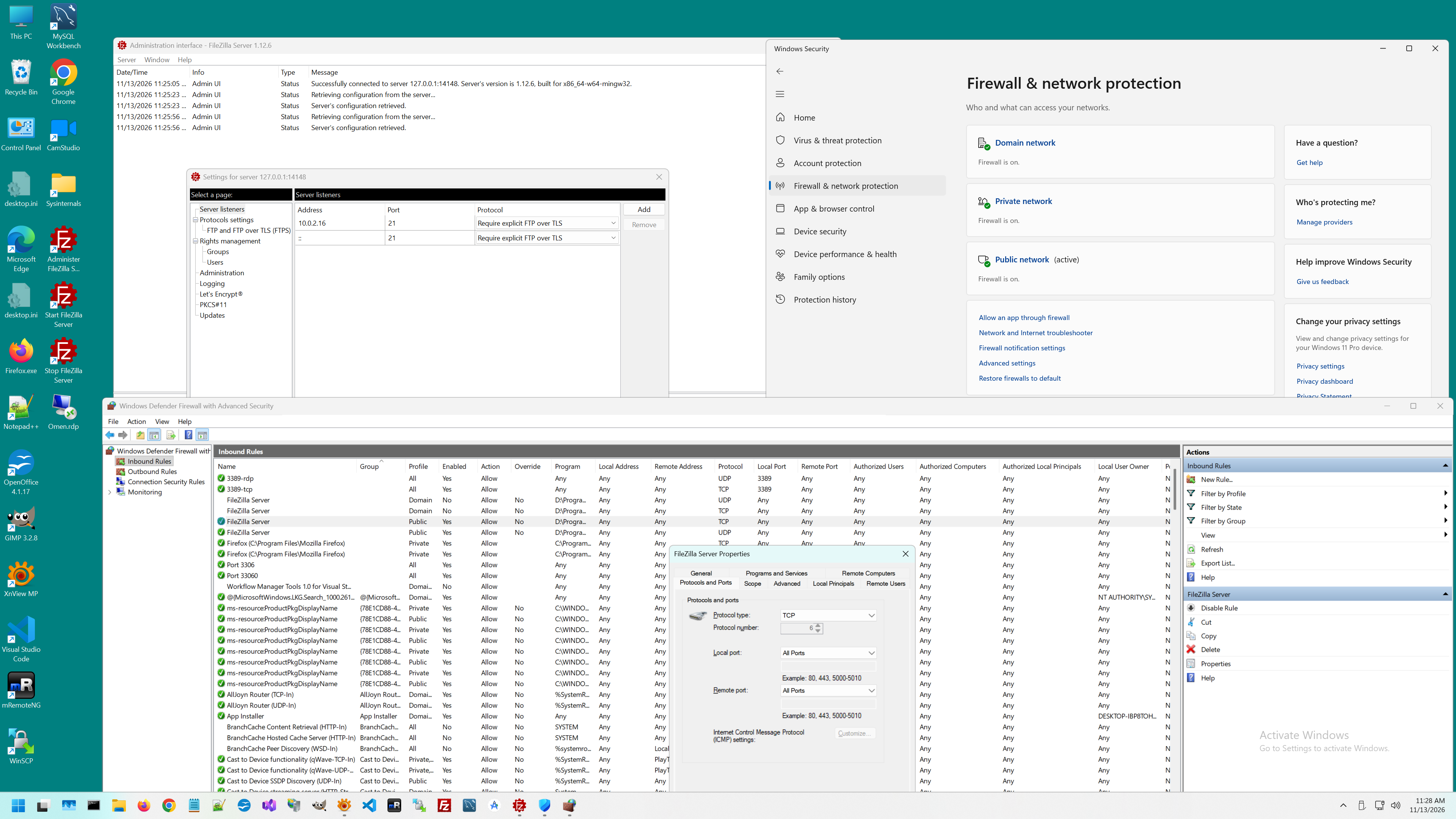
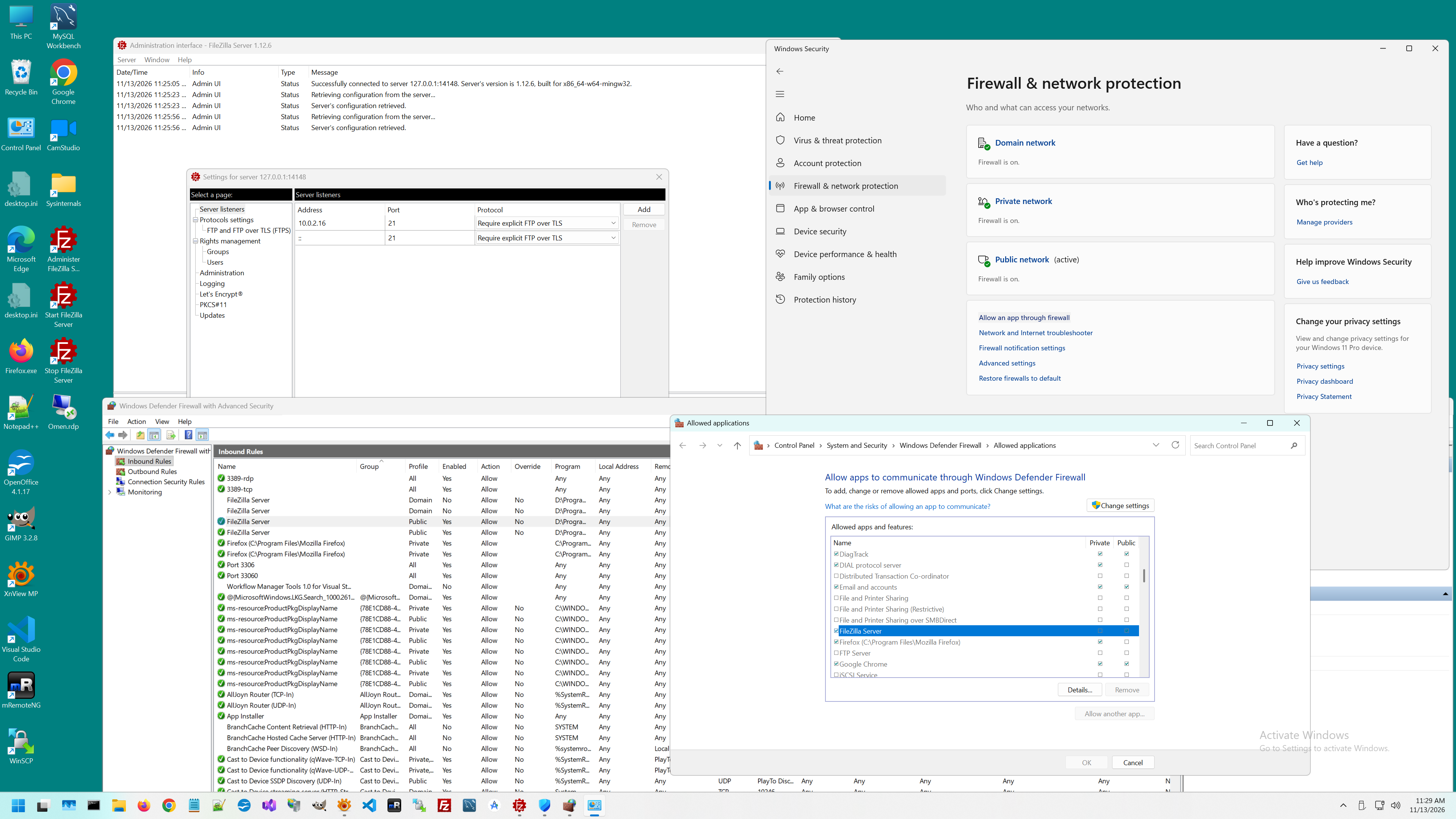
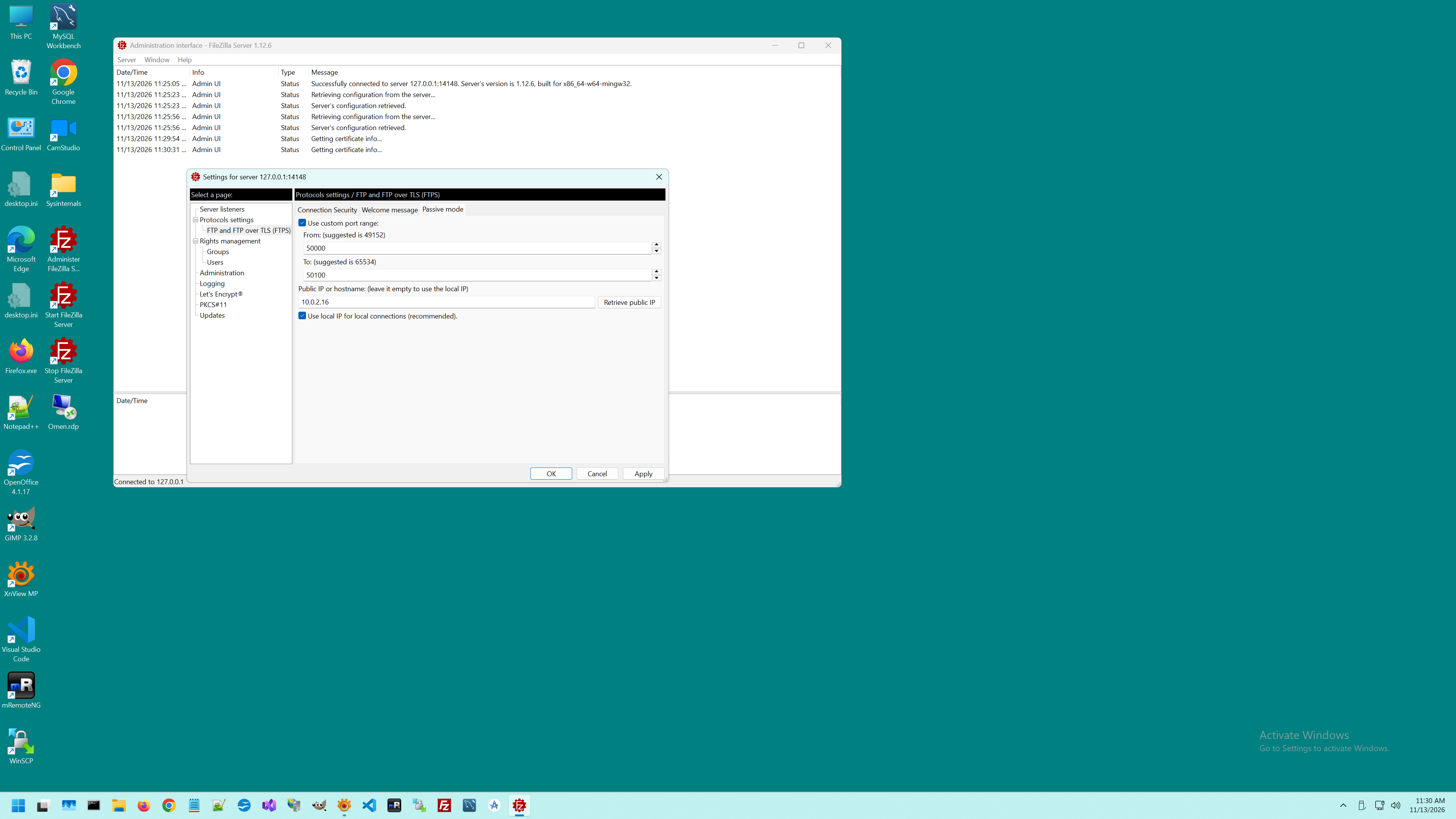
As usually, I select passive mode in server.
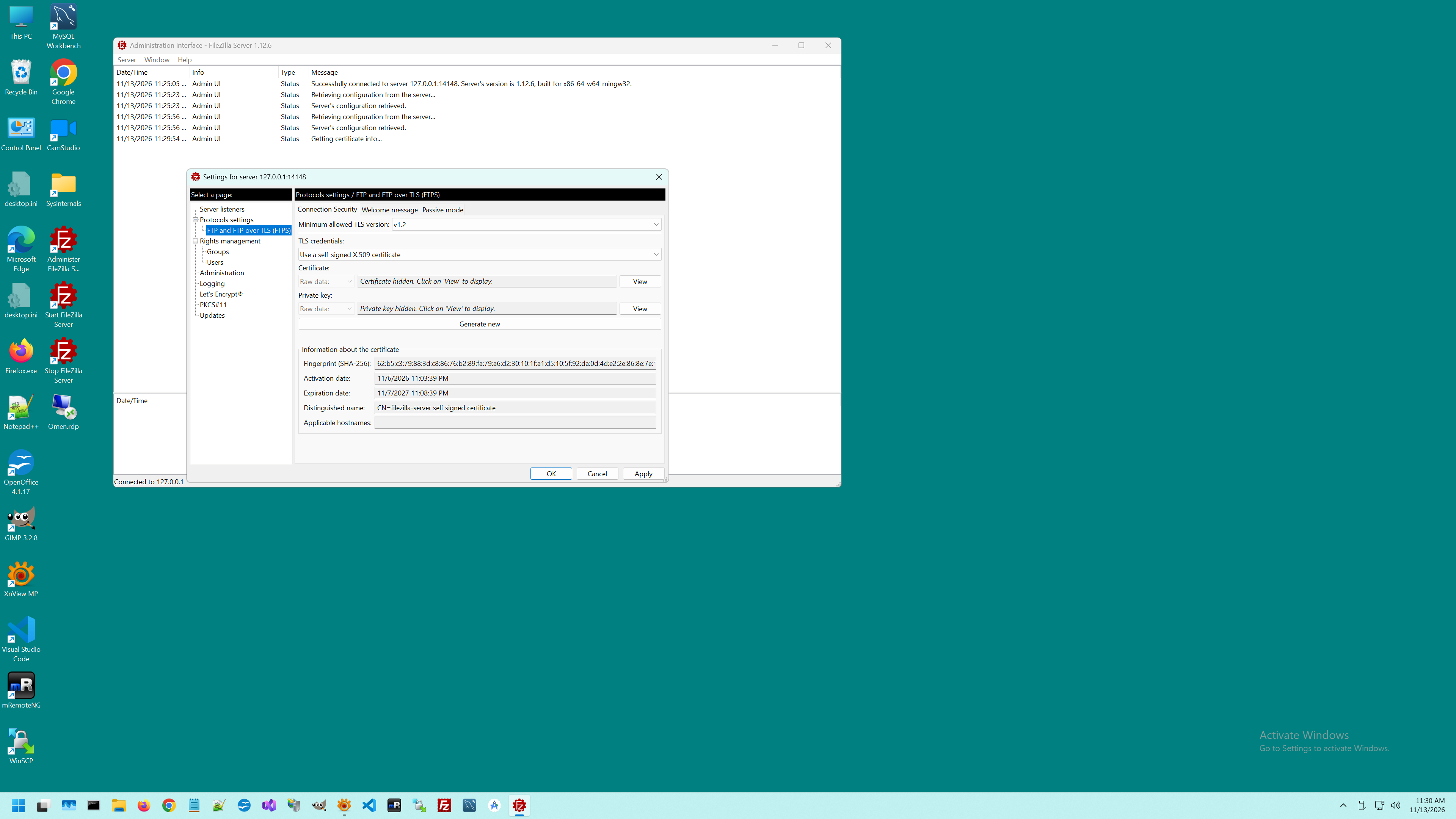
And we need to select correct SSL mode.
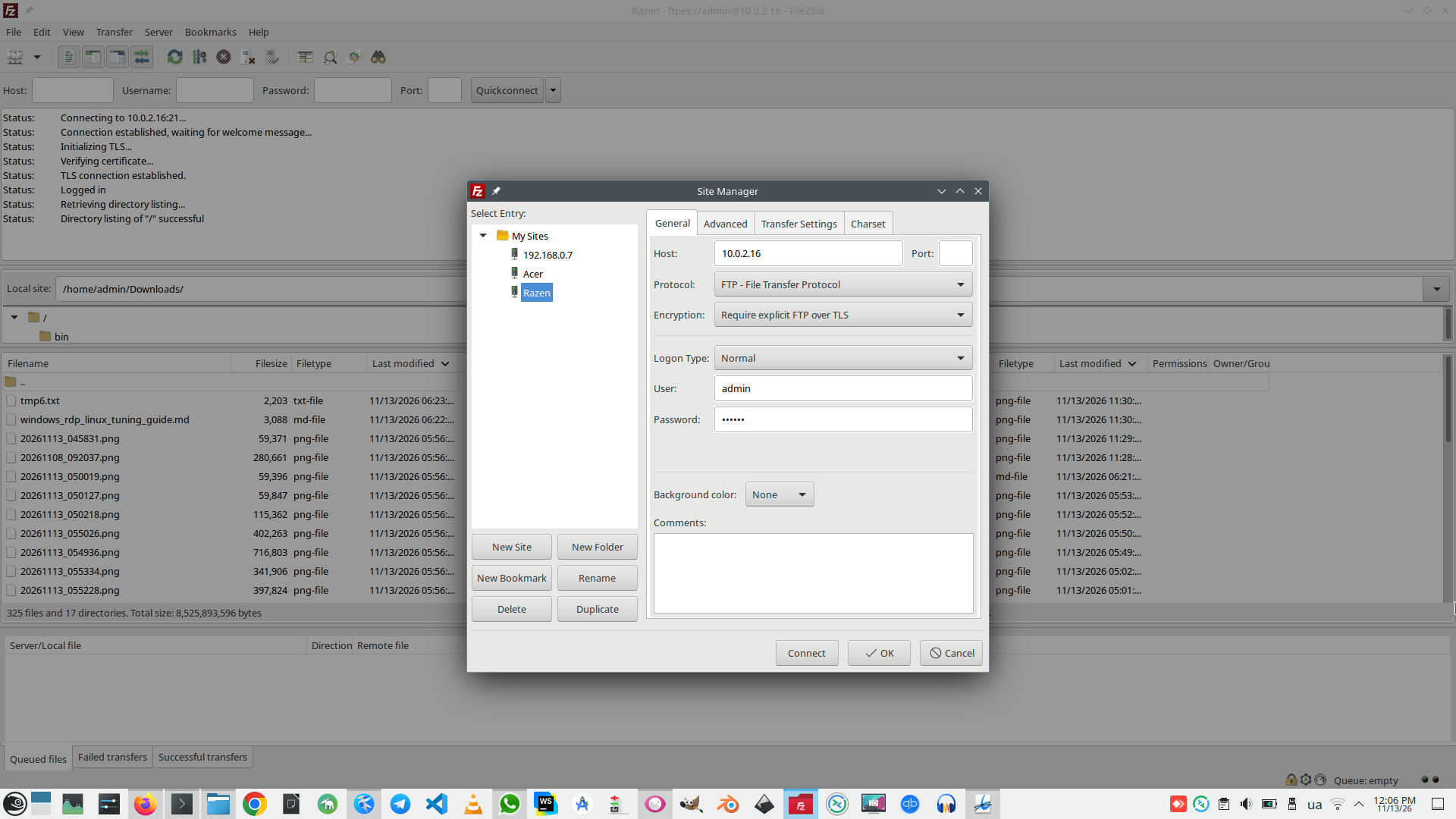
As you can see, in this case all working fine.
 )
|
|